
Claude Code & Cowork setup
This page covers two Anthropic products that have different best paths into Slideshot:
- Claude Code is the terminal-based developer agent. Install Slideshot through Claude Code’s plugin marketplace commands.
- Cowork is the consumer and work app from Anthropic. Install Slideshot from the Cowork plugin marketplace and authorize the MCP server from the app.
Pick the section that matches the product you are using.
Claude Code
Claude Code supports plugin marketplace commands directly in the CLI. Use that flow so Claude Code can load the Slideshot plugin and authorize the Slideshot MCP server.
1. Add the Slideshot marketplace
In Claude Code CLI, paste this command to add the Slideshot marketplace:
/plugin marketplace add slideshot/skills2. Install the plugin
Then paste this command into Claude Code to install the plugin:
/plugin install slideshot@slideshot-skillsYou’ll see options for where to install the plugin. Pick whichever scope works best for you.
- Installing it globally, or in user scope, means you can prompt Slideshot from anywhere on your system.
- Installing it locally, or in project scope, means the Slideshot plugin is only available from the current working folder.
3. Reload plugins
Next, paste this command into Claude Code to ensure the plugin is loaded:
/reload-plugins4. Authorize Slideshot MCP
After that, authorize Slideshot MCP:
- Type
/pluginin Claude Code. - Switch to the Installed tab with the left and right arrow keys.
- Find Slideshot.
- Select Slideshot MCP and press Enter to authorize it.
Test the setup
Ask Claude Code to create a small recording:
Create a Slideshot recording of
https://docs.slideshot.aithat shows the docs landing page and the getting-started section.
Claude Code should use the Slideshot MCP tools to create the run, poll until it succeeds, and return the demo.mp4 artifact.
Troubleshooting
- Marketplace command fails. Check that the marketplace path is exactly
slideshot/skills. - Plugin does not appear after install. Run
/reload-plugins, then open/pluginand check the Installed tab. - Slideshot MCP is not authorized. Open
/plugin, select Slideshot MCP, and press Enter to authorize it. - Run paused with
awaiting_input. Read theawaiting_input.promptand submit the requested value with thesubmit_run_inputtool. See Runs. - Recording stops at a login page. Save credentials for that domain first. See Login to any web app.
Cowork
The Cowork app does not run shell commands, but it supports plugins. Install the Slideshot plugin from the marketplace and Cowork can call Slideshot directly from the conversation through MCP.
1. Open the plugin marketplace flow
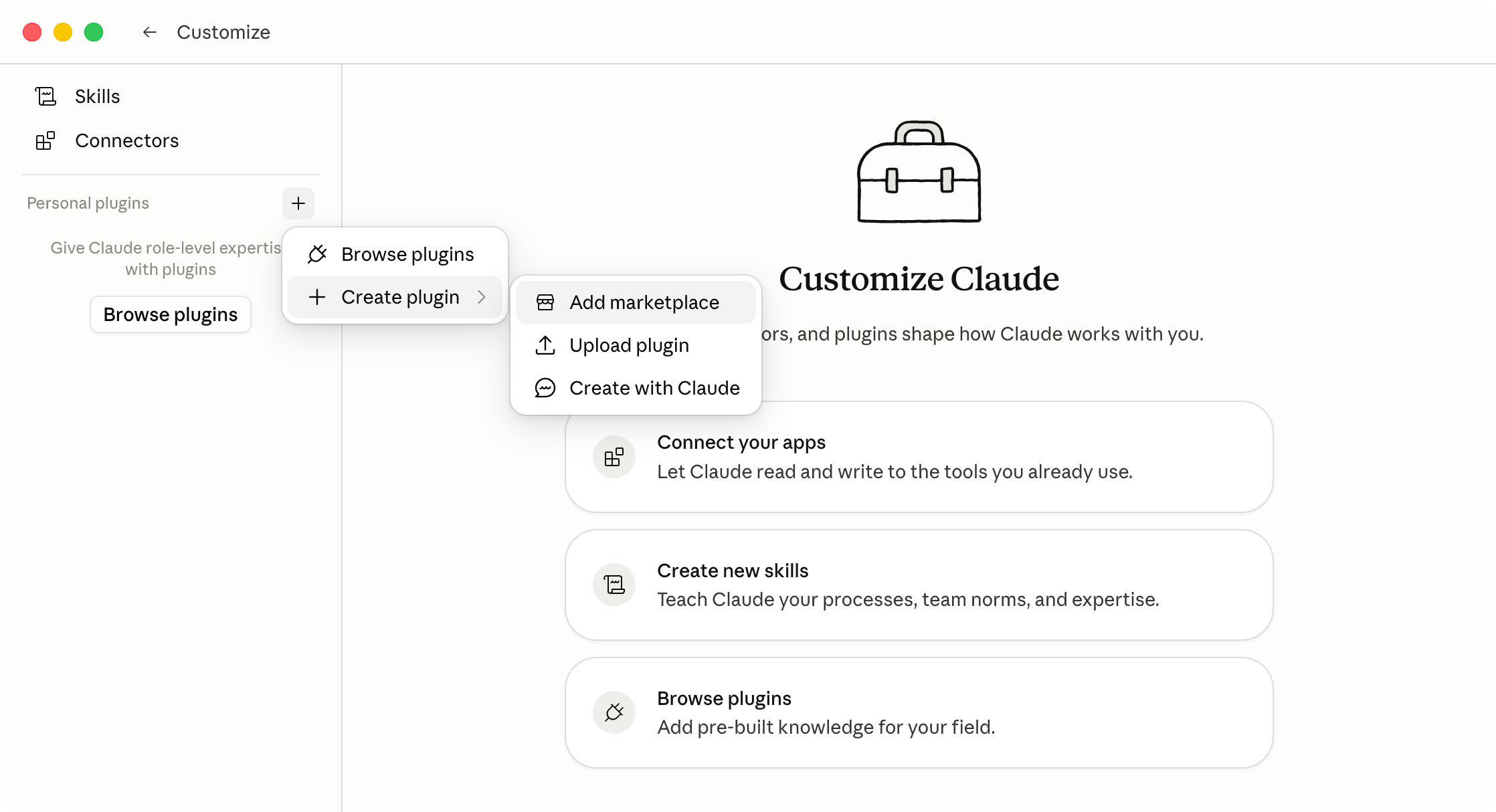
From the Claude Cowork tab in the Claude Desktop app, open the Customize page from the sidebar.
Click on the plus icon next to the Plugins section, then Create plugin and Add Marketplace.
2. Add the Slideshot marketplace
In the dialog, paste this link to the GitHub repository with the plugin:
https://github.com/slideshot/skills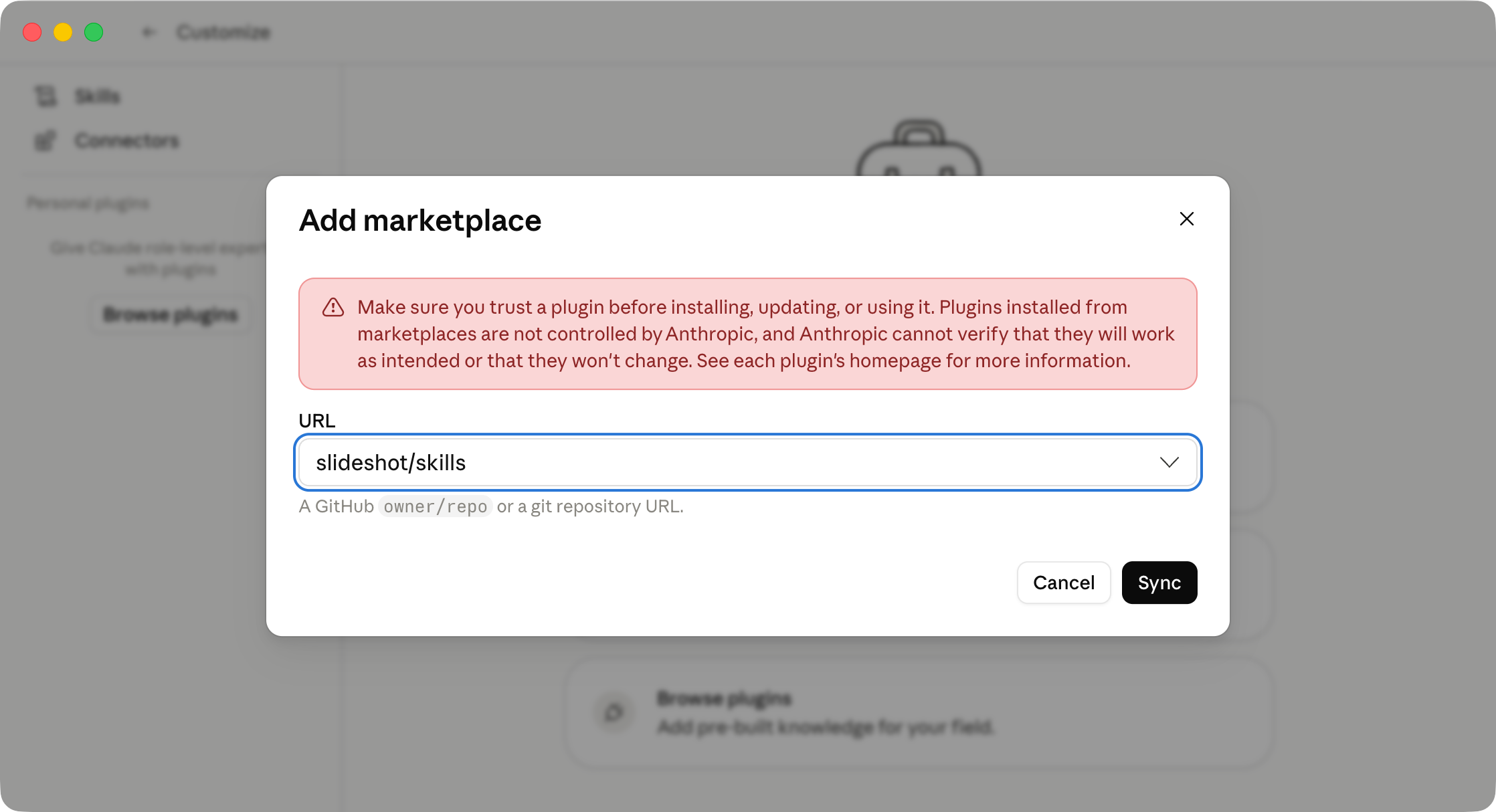
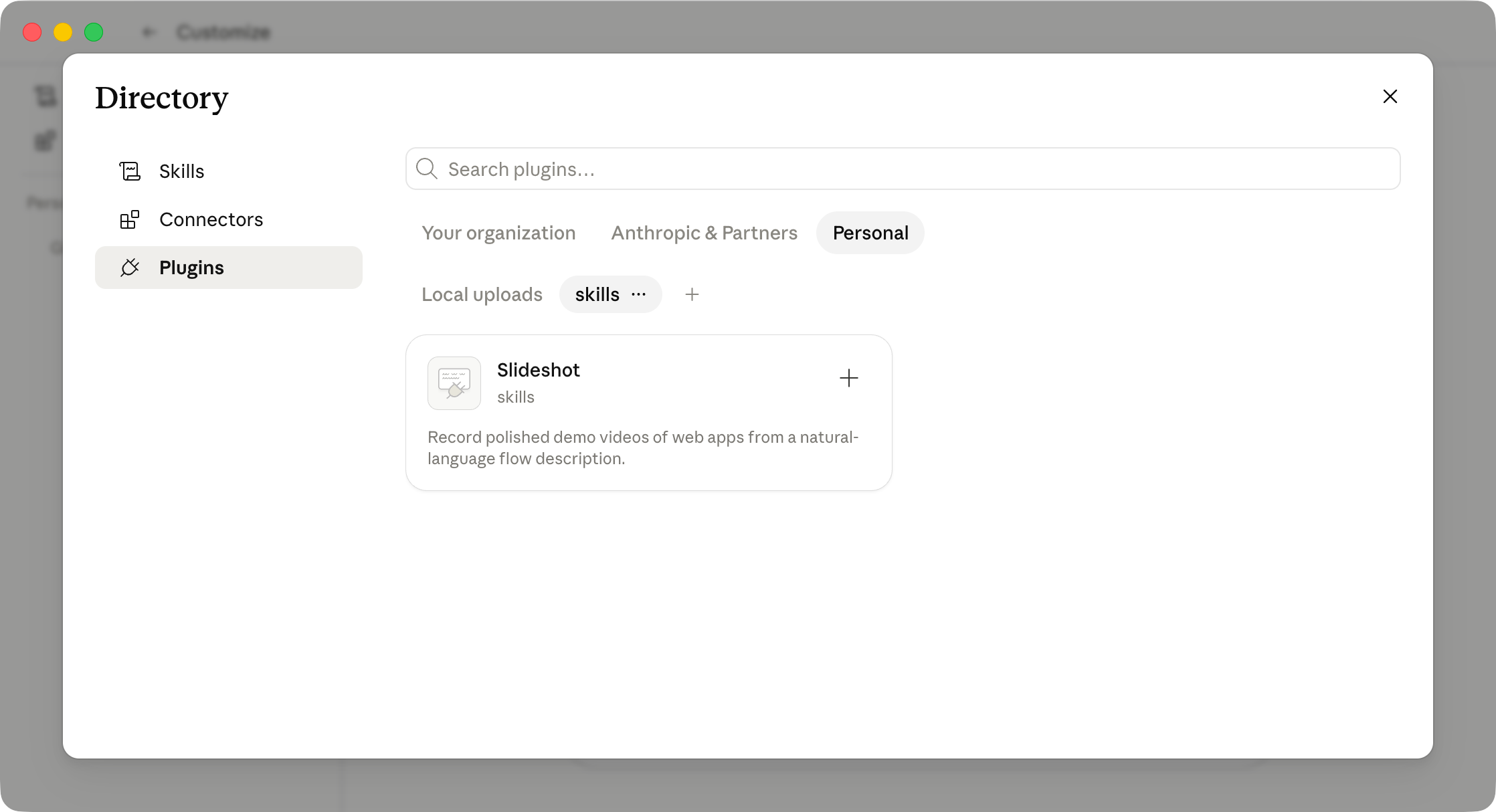
3. Install the Slideshot plugin
Once the marketplace is added, select the Skills tab and click Install next to the Slideshot plugin.
4. Authorize the MCP server
Finally, once the plugin is installed, add and authorize the MCP server.
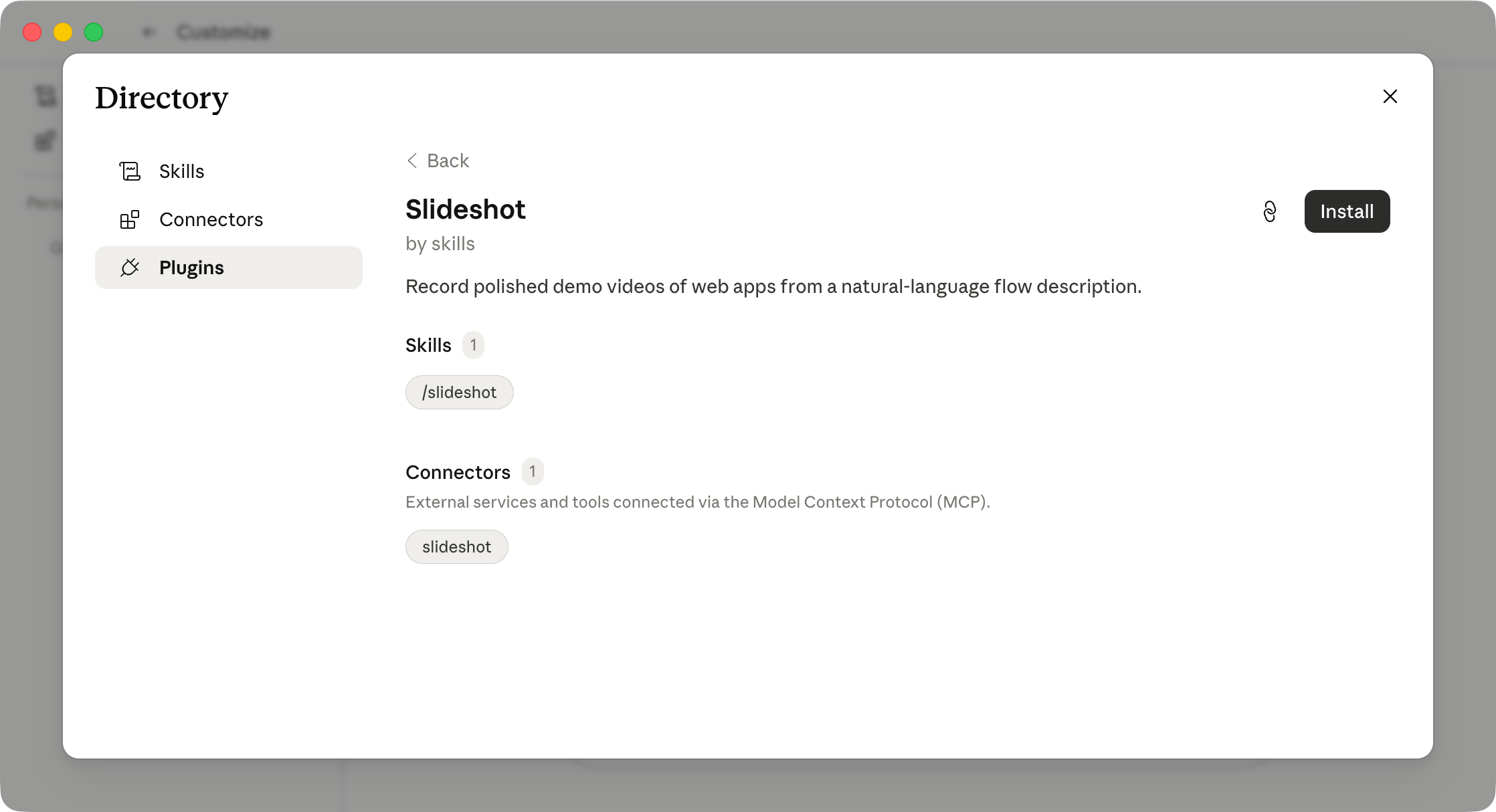
After approval, the Slideshot tools appear in the conversation: create_run, get_run, list_runs, submit_run_input, cancel_run, list_run_artifacts, credential management, submit_feedback, and fetch_brand.
Test the setup
Ask Cowork to record a small workflow:
Record a Slideshot demo of
https://docs.slideshot.aithat shows the docs landing page and the getting-started section.
Cowork calls create_run, polls get_run until status is succeeded, lists artifacts with list_run_artifacts, and shares the demo.mp4 download link.
Troubleshooting
- Marketplace add does not finish. Refresh Cowork and retry with
https://github.com/slideshot/skills. - Plugin is not visible. Check the Skills tab after adding the marketplace.
- MCP OAuth approval failed. Re-run the connect step from Cowork’s plugin panel.
- Tool calls fail with
401. Reconnect the plugin so Cowork refreshes its access token. - Run paused with
awaiting_input. Tell Cowork to read the prompt and submit the value viasubmit_run_input. See Runs. - Recording stops at a login page. Ask Cowork to save target-app credentials first. See Login to any web app.
Related
- Install skills: how the Slideshot skill is packaged and installed.
- MCP versus CLI: when to use the MCP server vs the CLI.
- Describe the demo flow: write prompts that produce sharper recordings.